GIT Tutorial
Source code: vnk8071/git_tutorial
Overview
Version control is a system that records changes to a file or set of files over time so that you can recall specific versions later. It allows you to revert files or project to a previous version, track modifications and modifying individuals, and compare changes. It is essential for the integrity of the project and the people working on it.
And last but not least, 80% of the time we’re just going to use about 20% of the available git commands.
Configuration
git config --global user.name "name"
git config --global user.email "email"
Workflow
 @source: A successful Git branching model
Commands and definitions
| # | Command | Definition |
|---|---|---|
| 1 | git clone <url>.git |
Clone a repository into a new directory |
| 2 | git checkout -b <branch_name> |
Create a new branch and switch to it |
| 3 | git add . |
Add all files to staging area |
| 4 | git commit -m "message" |
Commit changes to head |
| 5 | git push origin <branch_name> |
Push changes to remote repository |
| 6 | git log |
Show commit logs |
| 7 | git revert <commit_hash> |
Revert a commit |
| 8 | git reset --hard <commit_hash> |
Reset to a commit |
| 9 | git branch |
List all local branches |
| 10 | git branch -r |
List all remote branches |
| 11 | git branch -a |
List all local and remote branches |
| 12 | git branch -d <branch_name> |
Delete a local branch |
| 13 | git push origin --delete <branch_name> |
Delete a remote branch |
| 14 | git checkout <branch_name> |
Switch to a branch |
| 15 | git checkout - |
Switch to the previous branch |
| 16 | git checkout -- <file_name> |
Discard changes to a file |
| 17 | git merge <branch_name> |
Merge a branch into the active branch |
| 18 | git fetch |
Fetch changes from remote repository |
| 19 | git pull |
Fetch and merge changes from remote repository |
| 20 | git stash |
Stash changes in a dirty working directory |
| 21 | git stash list |
List all stashed changesets |
| 22 | git stash pop |
Apply stashed changes to working directory |
| 23 | git stash drop |
Discard stashed changesets |
| 24 | git rebase |
Reapply commits on top of another base tip |
| 25 | git rebase -i HEAD~<number_of_commits> |
Rebase interactive |
| 26 | git rebase --continue |
Continue rebase after resolving conflicts |
| 27 | git rebase --abort |
Abort rebase |
Note:
git pull=git fetch+git mergegit pull --rebase=git fetch+git rebase
Details in Git Cheat Sheet and Book
Basic flow
git clone <url>.git
git checkout -b <branch_name>
git add .
git commit -m "message"
git push origin <branch_name>
Example:
Follow the instructions in flow.py:

Check remote branches:

Common workflow patterns
Single branch workflow
- Use a single branch for all changes.
- Use tags to mark important commits.

| # | Benefits | Drawbacks |
|---|---|---|
| 1 | It is simple. | It is not recommended to use in remote branches. |
| 2 | It is easy to resolve conflicts. | It is not recommended to use in large projects. |
| 3 | It is easy to revert a commit. | It is not recommended to use in colaborating with others. |
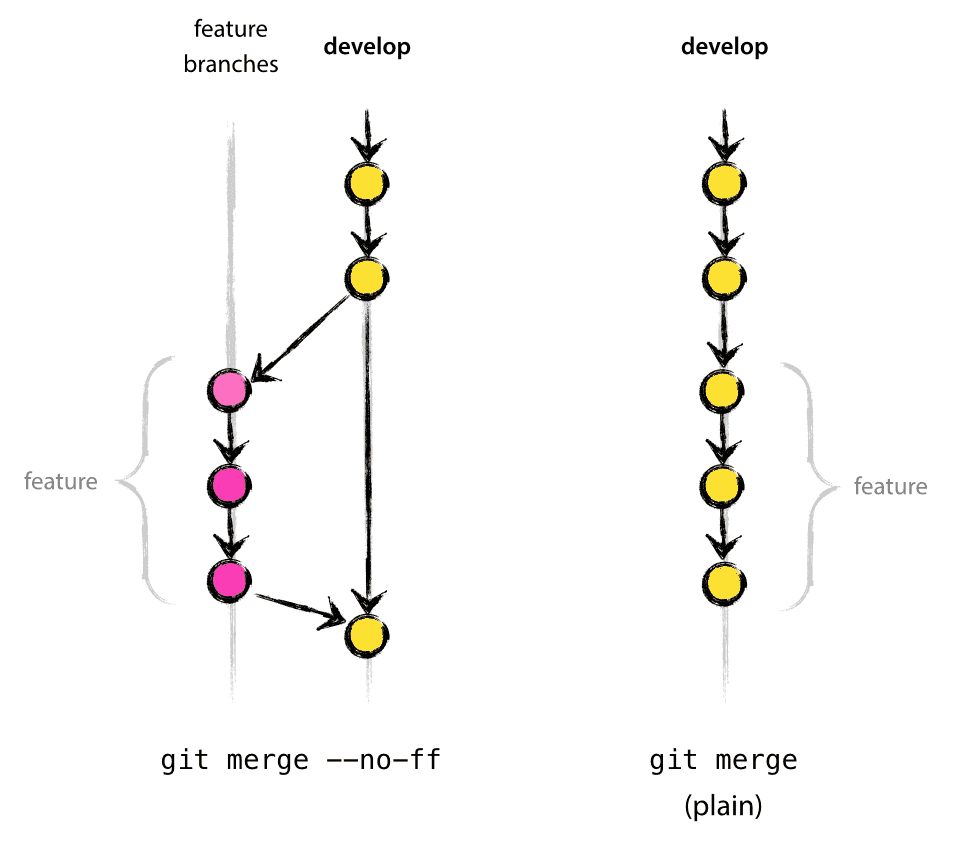 @source: A successful Git branching model
Branch based development workflow
- The master/main is never committed to directly.
- New features are developed in separate branches, and then if colaborating with others, merged could be approved by pull request into the master/main branch.
 @source: Trunk Based Development
| # | Benefits | Drawbacks |
|---|---|---|
| 1 | It is easy to revert a commit. | It is harder to resolve conflicts. |
| 2 | It is easy to review changes. | It is not recommended to use in local branches. |
| 3 | It is easy to collaborate with others. | Need dedicated time to review changes. |
Back in time
Revert
git log
git revert <commit_hash>
git commit -m "[REVERT] <commit_hash>"
git push origin <branch_name>
Example:
Follow the instructions in revert.py:

We want to revert the commit 0fcd910e9488b06d2206ff59c556e92a03a6f4ca:
git revert 0fcd910e9488b06d2206ff59c556e92a03a6f4ca
git commit -m "[REVERT] 0fcd910e9488b06d2206ff59c556e92a03a6f4ca"
Result:
[git-flow 7e41a10] Revert "UPDATE github link into doc projects"
 7 files changed, 14 deletions(-)

We can see that the commit 0fcd910e9488b06d2206ff59c556e92a03a6f4ca is reverted.
Reset
git log
git reset --hard <commit_hash>
git commit -m "[RESET] <commit_hash>"
git push origin <branch_name>
We can see that the commit 0fcd910e9488b06d2206ff59c556e92a03a6f4ca is reset.
Branches
Create a branch
git checkout -b <branch_name>
git push origin <branch_name>
Example:
Follow the instructions in branch.py:
git checkout -b git-flow

git push origin git-flow

Delete a branch
git branch -d <branch_name>
git push origin --delete <branch_name>
Merge
git checkout <branch_target>
git merge <branch_name>
git push origin <branch_target>

Follow the instructions in merge.py:
Ìf merge conflict, we need to resolve it first.
git checkout main
git merge git-flow
Example:
<<<<<<< HEAD
This is the first line of the main branch.
=======
This is the first line of the git-flow branch.
>>>>>>> git-flow

Then accept the changes could be current | incoming | both and commit:
git add .
git commit -m "Resolve conflict"
git push origin main
Check changes
git status
git log
git diff <commit_hash_1> <commit_hash_2>
git diff <branch_name_1> <branch_name_2>
Remote

Before we can push to a team repository, we need to pull and resolve conflicts first.
git pull
Then we can push to the team repository.
git push origin <branch_name>
Stash
Using git stash to save changes in a dirty working directory and then pull latest changes from remote repository.
git stash save
git pull
Then we can apply stashed changes to working directory.
git stash pop

or

git stash apply
Example:
git checkout main
git pull
Then raise a bug and fix it.
error: Your local changes to the following files would be overwritten by pull:
    README.md
Please commit your changes or stash them before you pull.
Aborting
In this case, we can stash changes and pull latest changes from remote repository.
git stash save
git pull
Then we can apply stashed changes to working directory.
## Rebase
Similar to merge, but rebase reapply commits on top of another base tip.
```git
git rebase <branch_name>
Example:
It squashes all commits of

Then it rewrites the history of

| # | Benefits | Drawbacks |
|---|---|---|
| 1 | It keeps the history clean. | It is harder to resolve conflicts. |
| 2 | It is easier to revert a commit. | It loses the context of the commits. |
| 3 | Using in local branches. | It is not recommended to use in remote branches. |
Squash
Using squash to combine multiple commits into one commit.
git rebase -i HEAD~<number_of_commits>
Note: Not recommended to use in remote branches when colaborating with others.
Less used commands
| # | Command | Definition |
| — | — | — |
| 1 | git rename <old_name> <new_name> | Rename a file |
| 2 | git remote rename <old_name> <new_name> | Rename a remote |
| 3 | git restore --staged <file_name> | Unstage a file |
Use cases
Git merge vs rebase
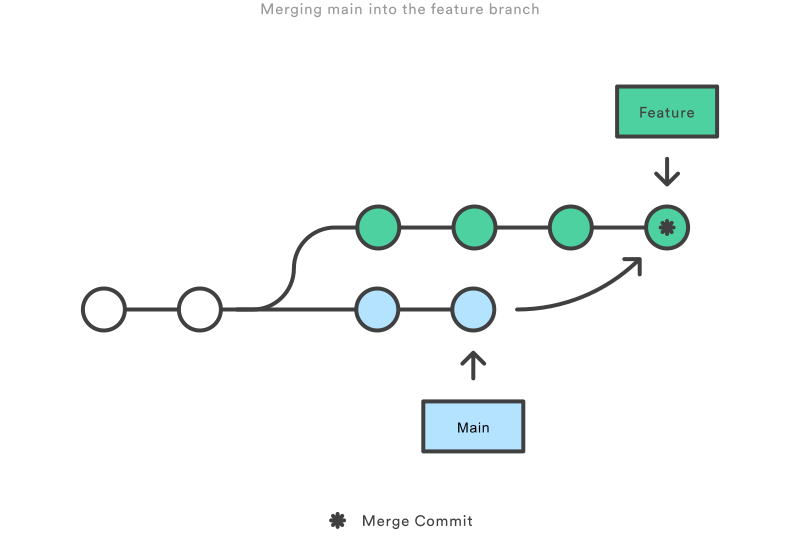
git merge feature main
This creates a new “merge commit” in the feature branch that ties together the histories of both branches, giving you a branch structure that looks like this:
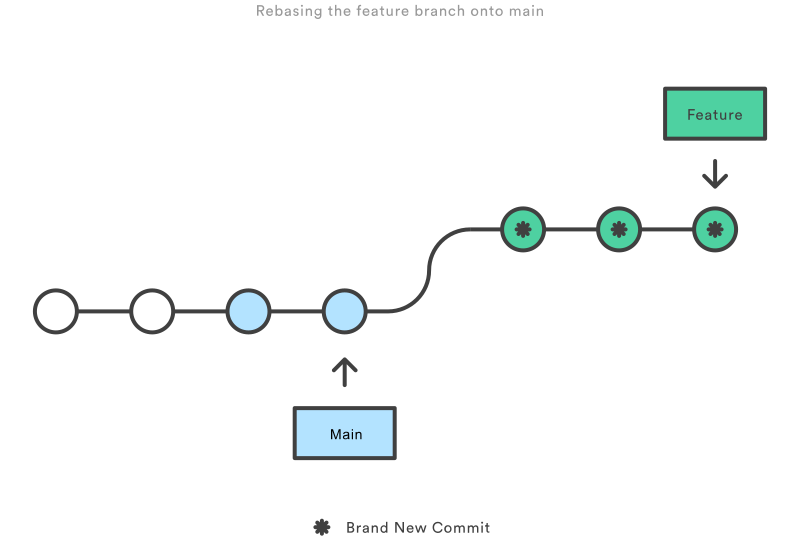
git checkout feature
git rebase main
This moves the entire feature branch to begin on the tip of the main branch, effectively incorporating all of the new commits in main. But, instead of using a merge commit, rebasing re-writes the project history by creating brand new commits for each commit in the original branch.
or we can interactive rebase:
git checkout feature
git rebase -i main
pick 33d5b7a Message for commit #1
fixup 9480b3d Message for commit #2
pick 5c67e61 Message for commit #3
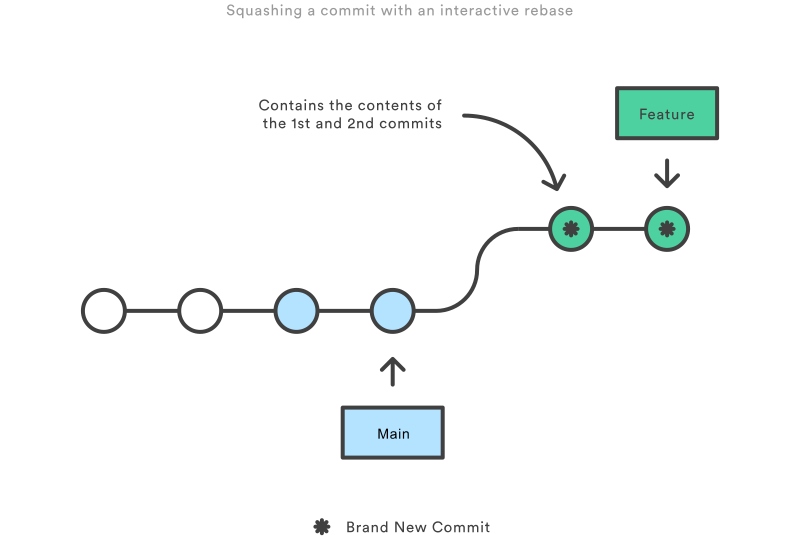
Finally, the feature branch has all of the commits from main and a nice, clean history:
git checkout feature
git rebase -i main
git checkout main
git merge feature
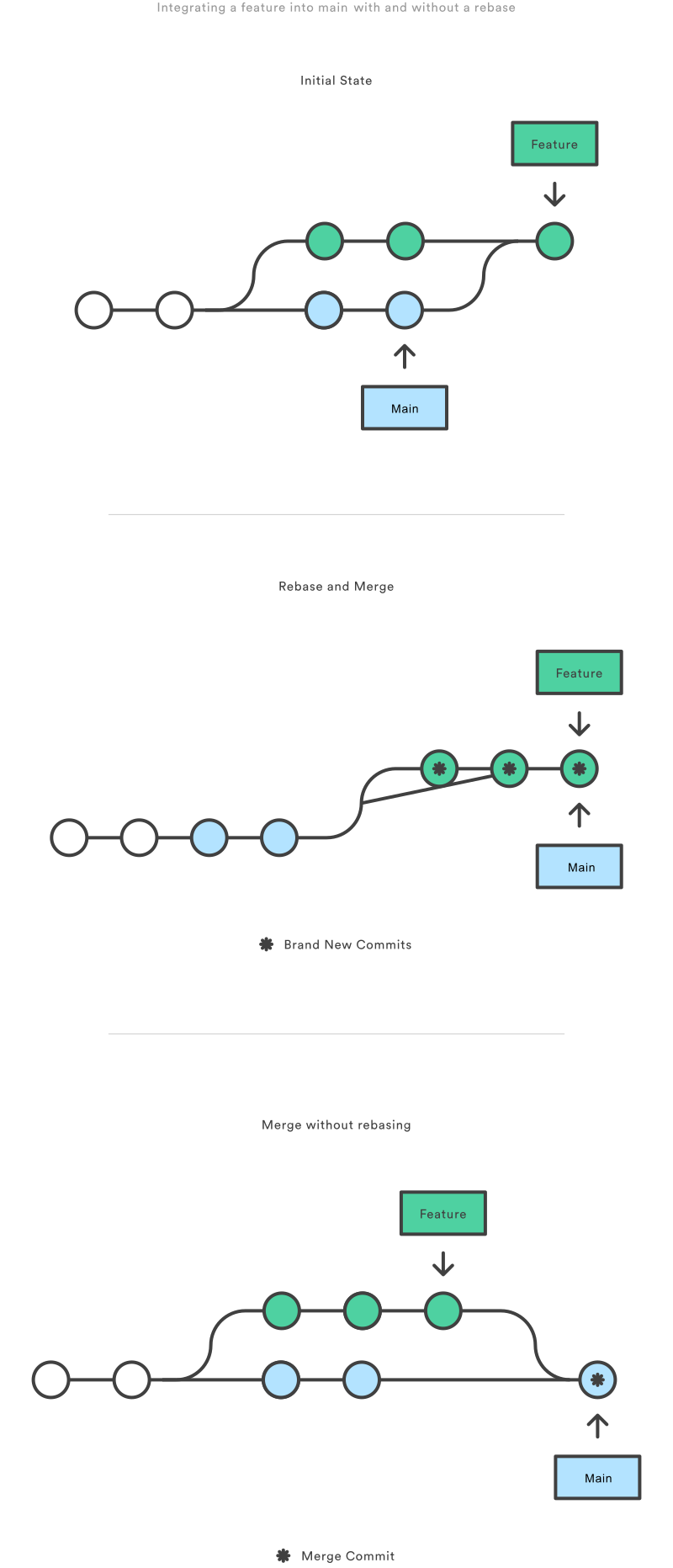
@source: Git merge vs rebase
Git reset vs revert
git checkout hotfix
git reset HEAD~2
The two commits that were on the end of hotfix are now dangling, or orphaned commits. This means they will be deleted the next time Git performs a garbage collection. In other words, you’re saying that you want to throw away these commits. This can be visualized as the following:
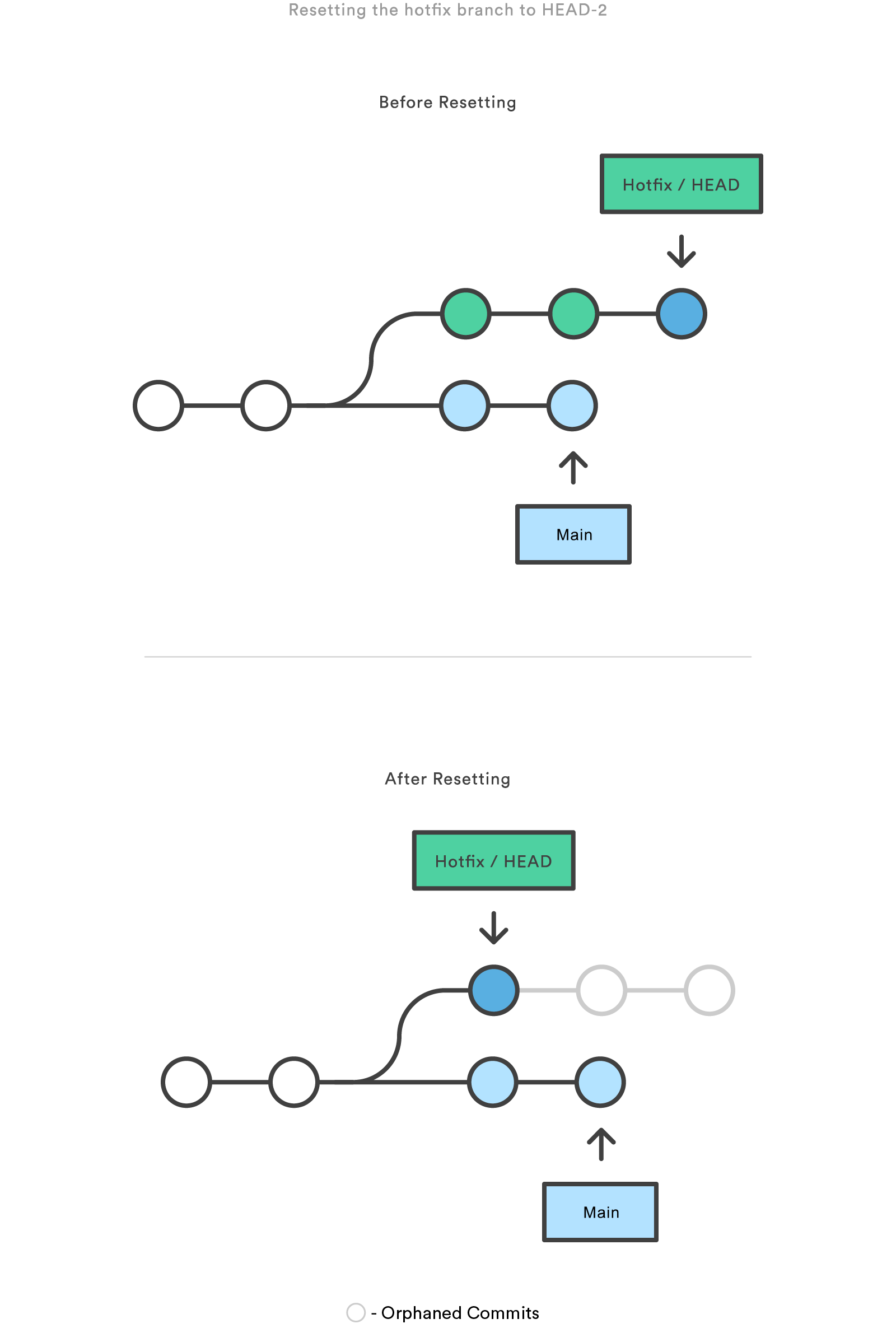
git checkout hotfix
git revert HEAD~2
Reverting undoes a commit by creating a new commit. This is a safe way to undo changes, as it has no chance of re-writing the commit history. This can be visualized as the following:
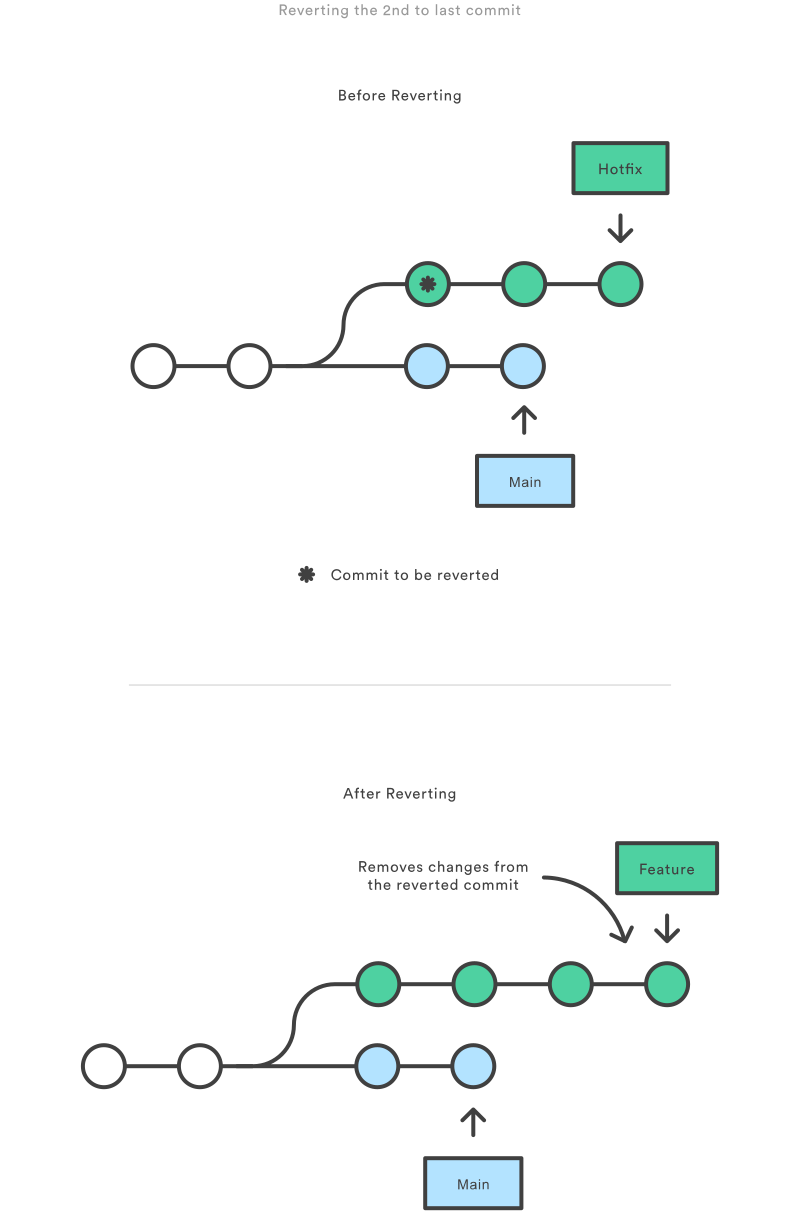
@source: Git reset vs revert
Git hooks
Git hooks are scripts that Git executes before or after events such as: commit, push, and receive. Git hooks are a built-in feature - no need to download anything. Git hooks are run locally.
Install pre-commit:
pip install pre-commit
brew install pre-commit
conda install -c conda-forge pre-commit
Then run pre-commit install to install the git hook scripts into .git/hooks/:
pre-commit install
Pre-commit hook
Add the following to .pre-commit-config.yaml:
repos:
  - repo: https://github.com/pre-commit/pre-commit-hooks
    rev: v4.4.0
    hooks:
      - id: check-case-conflict
      - id: trailing-whitespace
      - id: check-yaml
      - id: end-of-file-fixer
      - id: requirements-txt-fixer
  - repo: https://github.com/pre-commit/mirrors-autopep8
    rev: 'v2.0.2'
    hooks:
      - id: autopep8
        args: [--in-place, --aggressive, --aggressive, --recursive]
Auto enable pre-commit hook:
$ git config --global init.templateDir ~/.git-template
$ pre-commit init-templatedir ~/.git-template
When we commit, the pre-commit hook will run:
git add .
git commit -m "ADD latest git tutorial and ADD edit page"

@source: Git pre-commit hooks
Future work
- Practice make perfect.
- So far so good.